Optimize Android 14 Battery Life: 7 Steps for 30% More Power
Discover how to significantly extend your Android 14 device's battery life. This comprehensive 7-step guide helps you optimize Android battery performance by up to 30%, ensuring your phone lasts longer throughout the day with smart settings and usage habits.
By: Michael Sete on agosto 14, 2026
Unlocking Your Phone’s Full Potential: A 7-Step Guide to Optimizing Battery Life by 30% on Android 14 Devices
Are you constantly searching for a charger, even before your day is over? If you own an Android 14 device, you’re in luck! There are effective strategies to significantly improve your phone’s endurance. This guide will walk you through proven methods to optimize Android battery performance, potentially boosting your daily usage by 30% or more.
Understanding Android 14 Battery Management
Android 14 brings several enhancements to how your device manages power, making it more efficient than previous versions. However, even with these improvements, user habits and app configurations play a huge role in overall battery longevity. Understanding where your power goes is the first step towards better management. Your phone’s battery isn’t just powering the screen; it’s also running background processes, Wi-Fi, Bluetooth, GPS, and countless apps that might be silently draining energy. Taking a proactive approach to these elements can make a world of difference in how long your phone stays charged.
Modern smartphone batteries are designed to handle daily charging cycles, but constant deep discharges and recharges can impact their long-term health. By optimizing your usage, you not only extend daily battery life but also contribute to the overall health of your battery over its lifespan. Android 14 offers more granular controls and insights into battery consumption, empowering you to make informed decisions. Let’s delve into how you can leverage these features to truly optimize Android battery performance.
Fine-Tuning App Background Activity
One of the biggest culprits of battery drain is applications running in the background, consuming resources even when you’re not actively using them. Android 14 provides robust controls to manage this, allowing you to restrict what apps can do when they’re not in the foreground. Many apps, from social media to news feeds, constantly refresh content, use location services, or send notifications, all of which require power. Taking a moment to review and adjust these settings can yield significant power savings throughout your day.
It’s important to differentiate between apps that truly need background access (like messaging apps for notifications) and those that don’t. Aggressive background restrictions might delay notifications for some apps, so it’s a balance. However, for most applications, limiting their background activity will not negatively impact your user experience. This proactive management is a crucial step to optimize Android battery life effectively.
Managing App Power Usage
Navigate to your phone’s ‘Settings’ menu.
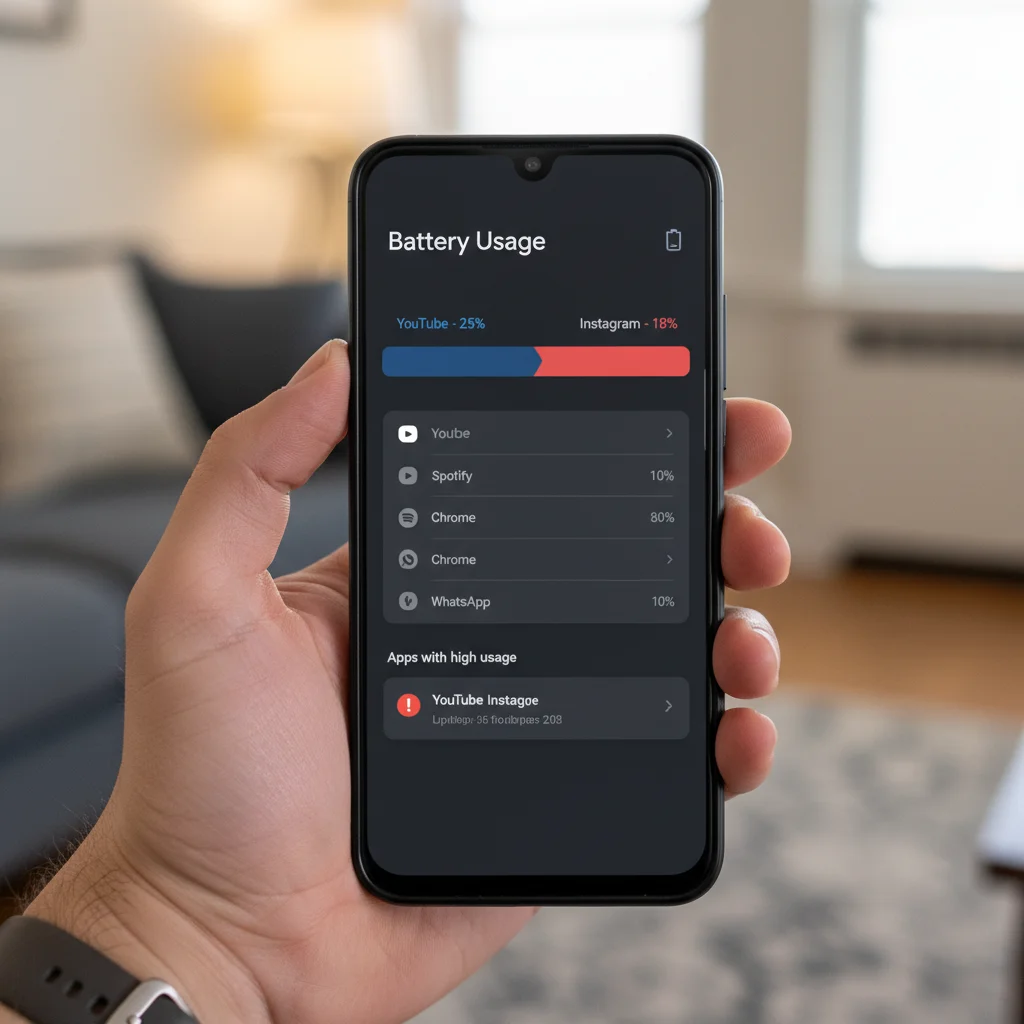
Tap on ‘Battery’ then ‘Battery Usage’ or ‘App battery usage.’
Review the list of apps and identify those with high background activity.
For each identified app, select ‘Restricted’ or ‘Optimized’ for background usage.
Avoid ‘Unrestricted’ unless absolutely necessary for an app’s core function.
Optimizing Screen Settings and Display
Your phone’s display is often the single largest consumer of battery power. The brighter your screen and the longer it stays on, the faster your battery drains. Android 14 offers several features to help you manage this, from adaptive brightness to dark mode. Making simple adjustments to these settings can significantly extend your device’s runtime. It’s a common oversight, but small changes here can lead to substantial improvements in your overall battery performance. Consider how often your screen lights up unnecessarily or stays bright in a dimly lit room.
Beyond brightness, factors like screen timeout duration and refresh rate also contribute to power consumption. A screen that stays on for two minutes after you stop interacting with it uses more power than one that turns off after 30 seconds. Similarly, higher refresh rates provide smoother visuals but demand more energy. Finding the right balance between visual quality and battery efficiency is key to optimize Android battery performance.
Here are some ways to optimize your screen settings:
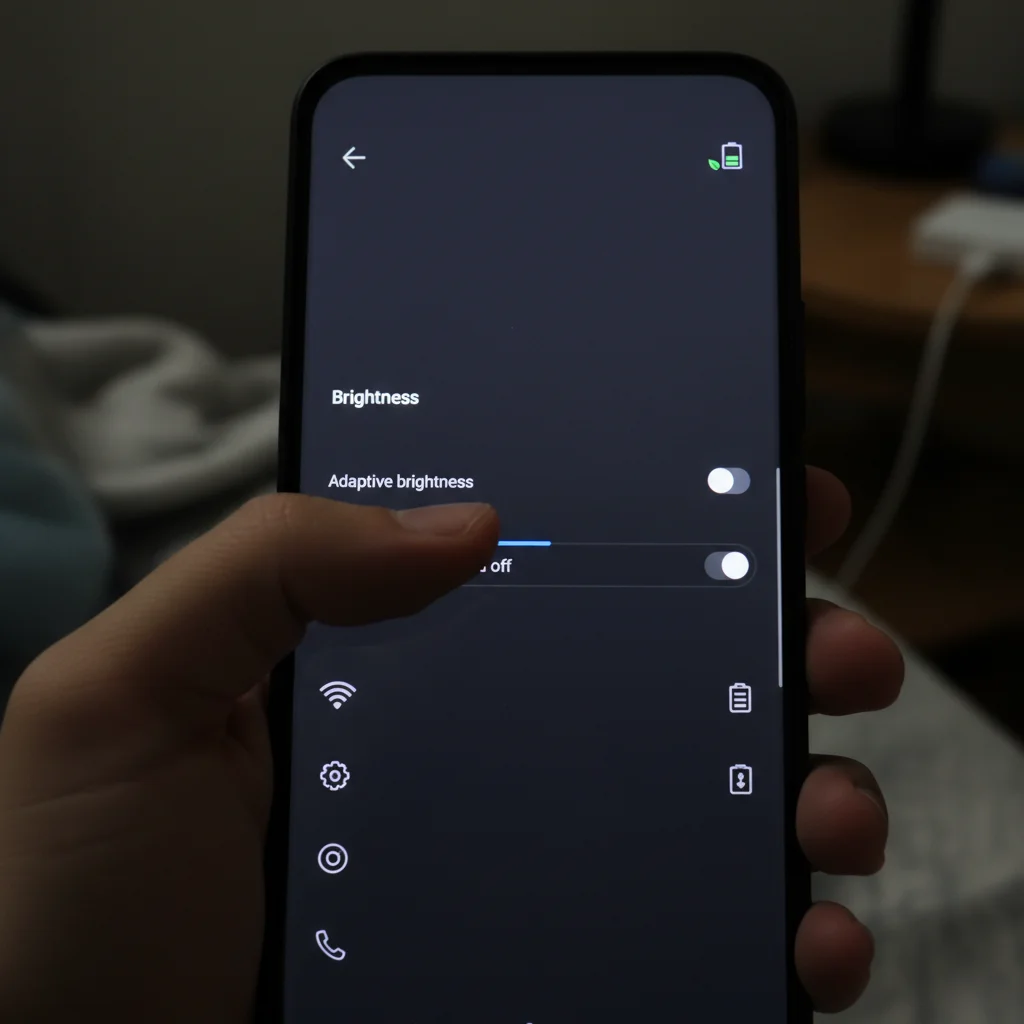
Adaptive Brightness: Enable adaptive brightness in ‘Display settings.’ This feature automatically adjusts screen brightness based on ambient light, saving power in darker environments.
Screen Timeout: Reduce your screen timeout to 15 or 30 seconds. You can find this under ‘Display’ > ‘Screen timeout.’
Dark Mode: Utilize dark mode, especially on devices with AMOLED screens. Dark pixels consume less power, offering notable savings. Enable it via ‘Display’ > ‘Dark theme.’
Refresh Rate: If your device supports it, consider lowering the screen refresh rate from 120Hz to 60Hz in ‘Display settings’ for a noticeable power reduction.
Managing Connectivity Options Effectively
Wireless connectivity features like Wi-Fi, Bluetooth, and GPS are essential for modern smartphone use, but they can be significant power drains if not managed properly. Your Android 14 device constantly scans for networks, devices, and location signals, even when you don’t explicitly need them. Keeping these radios active unnecessarily means your phone is always working in the background, consuming precious battery life. Developing a habit of turning off these features when not in use is a simple yet highly effective way to conserve power.
For example, if you’re at home and connected to Wi-Fi, there’s no need for your phone to keep scanning for cellular signals. Similarly, if you’re not using a Bluetooth accessory, turning off Bluetooth prevents your device from constantly searching for nearby pairings. These small adjustments add up over the course of a day, helping you to optimize Android battery performance and extend your phone’s uptime.
Consider the following practices:
Turn off Wi-Fi when not needed: If you’re out and about and not connected to a Wi-Fi network, toggle it off. Your phone won’t waste energy searching for available networks.
Disable Bluetooth: Only enable Bluetooth when you’re actively pairing with or using a device like headphones or a smartwatch.
Location Services: Set location services to ‘While using the app’ for most applications, rather than ‘Always.’ You can manage this in ‘Location settings’ under ‘App location permissions.’
Airplane Mode: If you’re in an area with poor signal or don’t need connectivity for an extended period (e.g., during a flight or deep sleep), enable Airplane Mode to turn off all radios at once.
Leveraging Android 14’s Adaptive Battery and Doze Mode
Android 14 builds upon the intelligent battery management features introduced in previous versions, notably Adaptive Battery and Doze Mode. These technologies are designed to learn your usage patterns and automatically optimize app behavior and system resources to save power. Adaptive Battery prioritizes power for the apps you use most, while Doze Mode puts your device into a deeper sleep state when it’s stationary and unplugged for a period. Understanding how these work and ensuring they are enabled can provide passive, yet significant, battery savings.
While these features work largely in the background, it’s good to confirm they are active and understand their implications. They represent a smart, automated approach to conserve energy without requiring constant manual adjustments from the user. By allowing your phone to intelligently manage resources, you can optimize Android battery life with minimal effort. It’s like having a personal battery assistant constantly working to keep your phone powered.
Here’s how to ensure these features are working for you:
Adaptive Battery: Go to ‘Settings’ > ‘Battery’ > ‘Adaptive Battery’ and make sure it’s toggled on. This allows the system to restrict power for rarely used apps.
Doze Mode: Doze Mode activates automatically when your phone is unplugged, stationary, and the screen is off. There isn’t a manual toggle for Doze, but ensuring your phone is left undisturbed when not in use allows it to enter this power-saving state more frequently.
Battery Saver: For critical situations, manually activate ‘Battery Saver’ mode. This restricts background activity, limits visual effects, and reduces performance to drastically extend battery life. It can be found in ‘Settings’ > ‘Battery.’
Minimizing Widgets, Live Wallpapers, and Push Notifications
While aesthetically pleasing and convenient, certain visual elements and constant notifications can silently chip away at your battery. Live wallpapers, for instance, constantly animate, requiring continuous processing power and display updates. Similarly, an abundance of widgets on your home screen, especially those that frequently refresh data (like weather or news widgets), contribute to background activity and drain. Every visual flourish and every piece of real-time information comes at an energy cost, even if it seems minor on its own.
Push notifications, while useful for staying informed, also consume power. Each notification triggers your screen to light up, vibrates your phone, and activates the app in the background. While you wouldn’t want to turn off all notifications, being selective about which apps are allowed to send them can significantly reduce power consumption. Making mindful choices about these features can help you optimize Android battery life without sacrificing essential functionality.
Consider these adjustments:
Static Wallpapers: Opt for static wallpapers instead of live ones. They require no continuous processing.
Widget Pruning: Remove unnecessary widgets from your home screens. Keep only the most essential ones that don’t refresh data too often.
Notification Management: Review your app notifications in ‘Settings’ > ‘Notifications.’ Disable notifications for apps that don’t require immediate alerts.
Vibration and Haptics: Reduce or turn off vibration for notifications and haptic feedback for keyboard presses. These motor movements consume more power than simple sound alerts.
Frequently Asked Questions
Q: Does fast charging affect battery life?
A: While convenient, frequent fast charging can generate more heat, which over time can slightly degrade a battery’s overall capacity. However, modern fast charging systems are designed to minimize this impact, and for most users, the convenience outweighs the minimal long-term effect.
Q: Is it better to fully discharge my phone before charging?
A: No, for modern lithium-ion batteries, it’s generally better to keep the charge between 20% and 80%. Fully discharging your phone regularly can stress the battery and shorten its lifespan. Partial charges are healthier for the battery.
Q: How often should I calibrate my Android 14 battery?
A: Battery calibration isn’t typically necessary for modern Android devices. The system is quite good at estimating battery levels. If you notice significant discrepancies, a simple restart often helps reset the battery gauge, but full calibration isn’t a routine maintenance task.
Q: Do third-party battery saver apps actually work?
A: Many third-party battery saver apps offer features already built into Android 14. Some can even consume more battery due to their own background processes. Sticking to your phone’s native battery optimization tools is often the most effective and safest approach.
Q: Does using my phone in extreme temperatures affect battery life?
A: Yes, extreme heat or cold can significantly impact battery performance and health. High temperatures can cause faster degradation, while very cold temperatures can temporarily reduce capacity. Always try to keep your phone within a moderate temperature range.
Optimizing your Android 14 device’s battery life isn’t about drastic sacrifices; it’s about making smart, informed choices that align with your usage habits. By implementing the seven steps outlined in this guide – from fine-tuning app activity and display settings to intelligently managing connectivity and leveraging Android’s built-in features – you can significantly improve your phone’s endurance. Imagine going through your day without constantly worrying about finding an outlet, enjoying an extra 30% or more of power for calls, messages, and entertainment. These adjustments not only extend your daily usage but also contribute to the long-term health of your device’s battery. Take control of your phone’s power consumption today and experience the freedom of a longer-lasting Android 14 device.