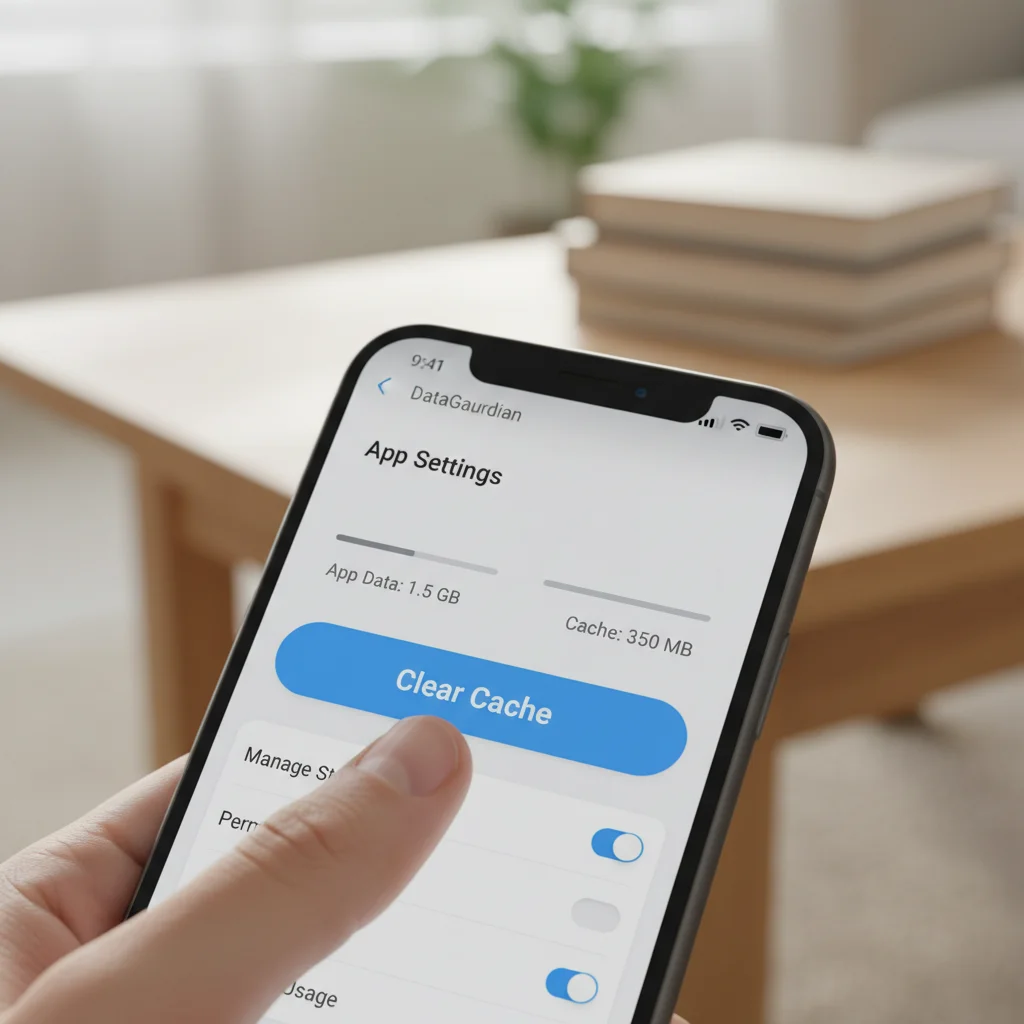
Discover simple yet effective strategies to fix freezing apps and common smartphone problems. This guide provides 5 quick troubleshooting tips to restore your device's performance, ensuring a smoother mobile experience without complex repairs.
Troubleshooting Common Smartphone Issues: 5 Quick Fixes for Freezing Apps
It’s a familiar and frustrating scenario: you’re in the middle of something important on your smartphone, and suddenly, an app freezes. Your screen becomes unresponsive, and panic starts to set in. Dealing with freezing apps is one of the most common smartphone issues users face, disrupting productivity and enjoyment. But don’t worry; most of these problems have straightforward solutions that don’t require a trip to the repair shop. In this article, we’ll explore practical steps to diagnose and fix freezing apps, helping you get your device back to smooth operation quickly and efficiently. We’ll cover five essential troubleshooting tips that empower you to take control of your smartphone’s performance and tackle those annoying freezes.
1. Restart Your Smartphone: The Universal Fix
When an app freezes or your phone starts acting sluggish, the first and often most effective step is a simple restart. Think of it as hitting a refresh button for your device. A restart clears out temporary glitches, closes background processes that might be consuming too many resources, and reinitializes all system functions. This can resolve minor software conflicts that lead to app instability, allowing your phone to start fresh. It’s surprising how many complex issues can be resolved with this basic action, making it the go-to solution for many tech support professionals. Always try restarting your device before delving into more complicated troubleshooting methods.
To perform a soft reset:
For most Android phones: Press and hold the power button for a few seconds until a menu appears, then select “Restart” or “Power off” and then power it back on.
For iPhones (newer models): Press and hold the side button and either volume button until the power off slider appears, then drag it. After the phone turns off, press and hold the side button again until you see the Apple logo.
For iPhones (older models with Home button): Press and hold the side or top button until the power off slider appears, then drag it. Turn it back on by holding the same button.
2. Clear App Cache and Data: A Digital Declutter
Over time, apps accumulate cached data to speed up loading times and improve user experience. However, this cached data can sometimes become corrupted or grow excessively large, leading to performance issues like freezing or crashing. Clearing an app’s cache removes these temporary files without deleting your personal data within the app. If clearing the cache doesn’t work, clearing the app’s data is the next step, though this will reset the app to its original state, requiring you to log in again and reconfigure any settings. This process can often resolve persistent freezing issues related to specific applications.
How to Clear Cache and Data
The process varies slightly between operating systems:
On Android: Go to Settings > Apps (or Apps & notifications) > See all apps. Tap on the problematic app, then go to Storage & cache. You’ll see options to “Clear cache” and “Clear storage” (which clears data). Start with clearing the cache.
On iOS: iPhones don’t offer a direct way to clear an individual app’s cache or data without deleting and reinstalling the app. If an app is misbehaving, offloading it (which frees up storage but keeps documents and data) or deleting and reinstalling it is the common solution. Go to Settings > General > iPhone Storage, select the app, and choose “Offload App” or “Delete App.”
3. Update Apps and Operating System: Staying Current
Software developers constantly release updates for their apps and operating systems. These updates often include bug fixes, performance enhancements, and security patches that can address known issues, including those that cause apps to freeze. Running outdated software can lead to compatibility problems and instability, as newer features or system changes might clash with older code. Regularly checking for and installing updates ensures your device and its applications are running the most stable and optimized versions available. This proactive approach can prevent many common freezing issues before they even start, maintaining a smooth user experience.
Keeping your device updated is a simple yet powerful maintenance task. Developers work hard to identify and fix bugs, and these fixes are rolled out through updates. Neglecting updates means you’re missing out on these crucial improvements. Moreover, sometimes app developers update their apps to work best with the latest operating system versions, so if one is outdated, it can cause conflicts. Always ensure both your individual applications and your entire operating system are running on their most recent iterations. This is a fundamental step in ensuring stability and preventing apps from freezing unexpectedly.
4. Check Storage Space: The Hidden Culprit
A smartphone running low on storage space can experience a multitude of performance problems, including apps freezing, crashing, and overall sluggishness. When your device’s internal storage is nearly full, it struggles to create temporary files, store cached data efficiently, and manage system processes. This lack of breathing room can lead to apps struggling to function correctly, as they don’t have the necessary space to operate as intended. Regularly monitoring your storage usage and freeing up space is crucial for maintaining optimal smartphone performance and preventing frustrating freezes. Deleting unnecessary files, old photos, or unused apps can make a significant difference.
To check and manage your storage:
On Android: Navigate to Settings > Storage. Here you’ll see a breakdown of what’s consuming your space. You can often find options to free up space directly from this menu, such as deleting duplicate files or large downloads.
On iOS: Go to Settings > General > iPhone Storage. This section provides a visual representation of your storage usage and offers recommendations for optimizing storage, like offloading unused apps or reviewing large attachments in Messages.
5. Reinstall Problematic Apps: A Fresh Start
If an app continues to freeze or crash despite trying the previous troubleshooting steps, a complete reinstallation might be necessary. This approach ensures that you’re starting with a fresh, uncorrupted version of the app, free from any lingering data issues or installation errors that might have occurred initially. Sometimes, an app’s core files can become damaged or corrupted, which no amount of cache clearing or restarting can fix. Deleting the app entirely and then downloading it again from the official app store effectively gives it a clean slate, often resolving even the most stubborn freezing problems. Remember to back up any important app-specific data if possible before deletion.
When you reinstall an app, you’re essentially discarding all its local files and downloading a brand-new copy. This can be particularly effective if the app was installed incorrectly, or if an update went awry, leading to persistent bugs. Before reinstalling, make sure you know your login credentials for the app, as you’ll need to sign in again. For many users, this step is a last resort before considering a factory reset of the entire phone, but it’s a powerful tool for isolating and fixing issues with individual applications. This method often helps to fix freezing apps that seem to be beyond simple remedies.
Frequently Asked Questions
Q: Why do apps freeze on my smartphone? A: Apps can freeze for several reasons, including low device memory, corrupted app data, software bugs, an outdated operating system, or conflicts with other applications running in the background. It’s often a combination of factors.
Q: Will clearing an app’s data delete my login information? A: Yes, clearing an app’s data will typically reset the app to its initial state, meaning you will lose any saved login information, preferences, and downloaded content specific to that app. You’ll need to log in again.
Q: How often should I restart my smartphone? A: It’s a good practice to restart your smartphone at least once a week. This helps clear out temporary files, refresh system processes, and maintain overall device performance, preventing many minor issues from escalating.
Q: Can too many apps cause my phone to freeze? A: Yes, having too many apps, especially those running in the background or consuming significant resources, can overload your phone’s processor and memory, leading to sluggishness and app freezes. Regularly review and uninstall unused apps.
Q: What if none of these fixes work? A: If you’ve tried all these steps and your apps still freeze, consider backing up your data and performing a factory reset on your smartphone. If the problem persists even after a factory reset, it might indicate a hardware issue, and professional repair service may be needed.
Experiencing freezing apps on your smartphone can be incredibly disruptive, but as we’ve seen, many common issues have straightforward and effective solutions. By systematically applying these five troubleshooting tips—from the simple act of restarting your device to the more thorough process of clearing app data or reinstalling problematic applications—you can often restore your phone’s performance and stability. Regular maintenance, such as keeping your software updated and monitoring storage space, plays a crucial role in preventing these problems from occurring in the first place. These steps not only help you fix freezing apps but also empower you to take better care of your device, ensuring a smoother, more reliable mobile experience. Don’t let a frozen screen get the best of you; with a little knowledge and proactive effort, you can keep your smartphone running like new.