Transfer Data to New Android Phone in Under 20 Minutes
Moving to a new Android phone doesn't have to be a hassle. This guide will show you how to transfer Android data seamlessly and quickly, ensuring all your important information, apps, and settings are on your new device in under 20 minutes. Get ready for a smooth transition!
By: Michael Sete on agosto 14, 2026
Getting a new Android phone is exciting, but the thought of moving all your photos, contacts, apps, and messages can feel overwhelming. Many people dread the data transfer process, imagining hours of manual work or lost information. However, thanks to advancements in Android and various tools, it’s now simpler and faster than ever to transfer Android data. You can easily move everything to your new device, often in under 20 minutes, allowing you to enjoy your upgrade without the fuss.
Prepare Your Old Phone for a Smooth Transition
Before you even unbox your shiny new Android phone, a few quick steps on your old device can make the transfer process much smoother. Think of it as tidying up before moving house; it helps everything fall into place faster. Ensuring your old phone is ready minimizes potential hiccups and speeds up the entire migration. This preparation stage is crucial for a hassle-free experience when you transfer Android data.
First, make sure your old phone is fully charged or connected to a power source. Data transfer can use a lot of battery. Next, connect your phone to a stable Wi-Fi network. This is essential for cloud backups and downloading apps on your new device. Finally, clean up unnecessary files and apps. Deleting old photos, videos, and unused applications will reduce the amount of data to transfer, making the process quicker. This also gives your new phone a fresh start without digital clutter.
Utilize Google Backup for Effortless Data Migration
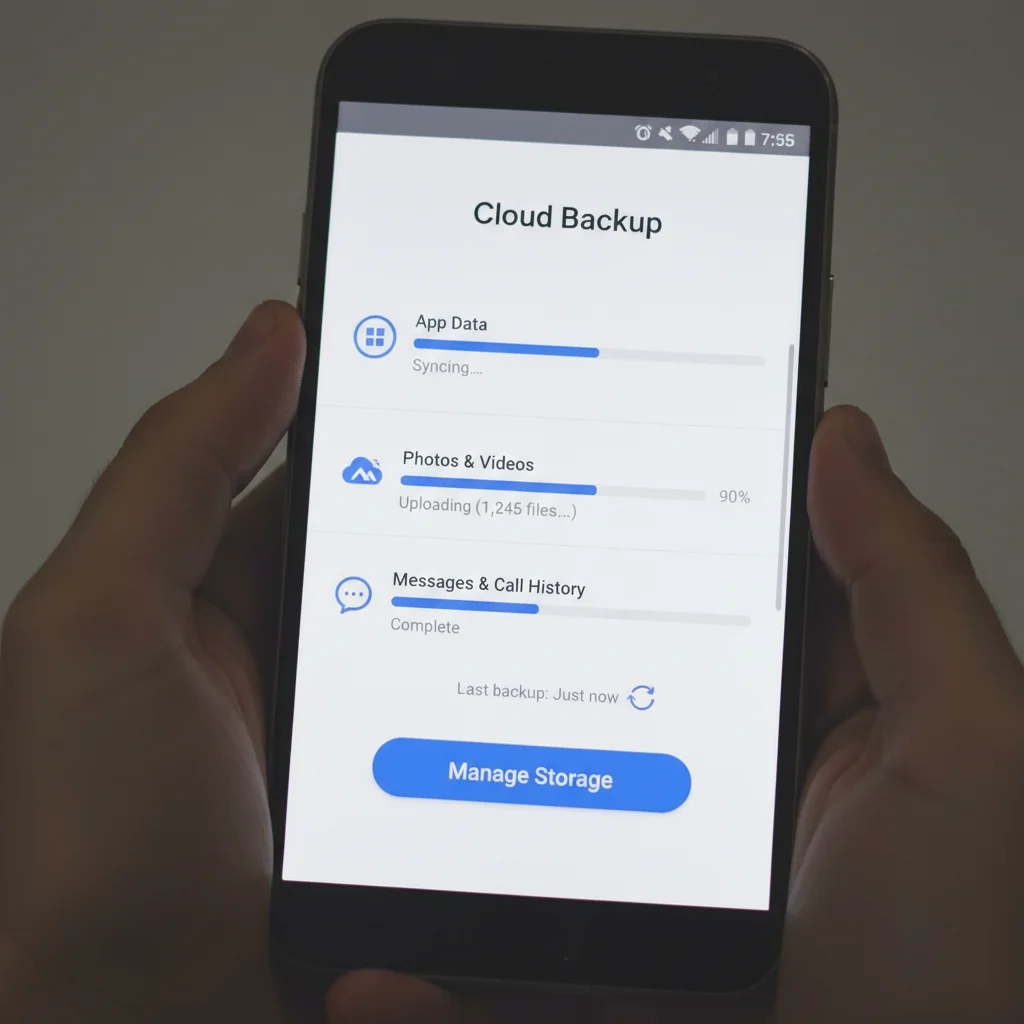
One of the easiest and most reliable ways to transfer Android data is by leveraging Google’s built-in backup service. Most Android phones automatically back up essential data to your Google account, making restoration on a new device incredibly straightforward. This method requires minimal effort from your side, as much of the heavy lifting is done in the background. It’s a highly recommended approach for anyone looking for a quick and secure transfer.
To ensure everything is backed up, go to your old phone’s Settings, then navigate to ‘System’ or ‘Accounts,’ and look for ‘Backup.’ Make sure ‘Backup to Google Drive’ is turned on. You can manually initiate a backup here to ensure all your latest data is saved. This includes app data, call history, contacts, device settings, and SMS messages. Photos and videos are typically backed up via Google Photos, so confirm that feature is also active and synced. When you set up your new phone, simply sign in with the same Google account, and it will prompt you to restore from your backup.
Seamlessly Transferring Apps and Settings
Moving your apps and settings is often a major concern for users switching phones. Thankfully, modern Android systems have made this process incredibly efficient. When you restore from a Google backup, most of your apps will automatically begin downloading to your new device. Furthermore, many app settings and login information are also transferred, saving you the hassle of reconfiguring everything. This aspect of the transfer is designed to be as hands-off as possible, allowing you to get back to using your favorite applications quickly.
Restoring Apps and Preferences
Automatic App Installation: After signing into your Google account on your new phone, you’ll be given the option to restore apps from your previous device. Select all the apps you wish to reinstall.
Wi-Fi Passwords: Google Backup often restores saved Wi-Fi networks and their passwords, meaning you won’t have to re-enter them manually.
Device Settings: Many system settings, like display preferences, language, and accessibility options, are also carried over, ensuring a familiar experience.
Home Screen Layout: Some launchers and phone manufacturers even allow the restoration of your home screen layout and widget placement, making your new phone feel instantly familiar.
Using Smart Switch or Manufacturer-Specific Tools
While Google Backup is excellent, many Android manufacturers offer their own dedicated tools to make the transfer even more comprehensive. These tools often go beyond what Google offers, allowing for the transfer of items like secure folders, specific app data that isn’t typically backed up by Google, and even home screen layouts with greater fidelity. Samsung’s Smart Switch, OnePlus Switch, and Xiaomi’s Mi Mover are prime examples. These applications are designed to provide a complete migration experience, ensuring virtually nothing is left behind when you transfer Android data.
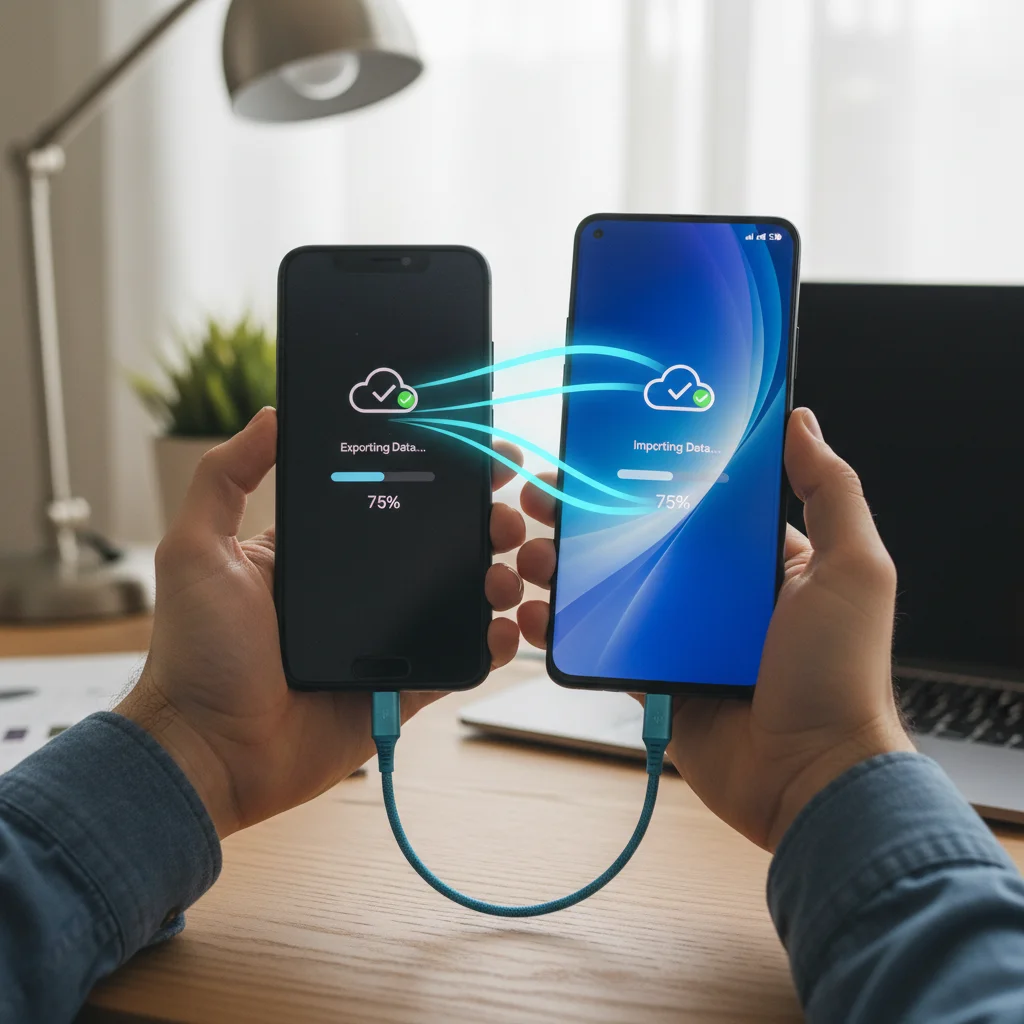
These manufacturer-specific apps typically work in one of two ways: either wirelessly over a local Wi-Fi connection, or via a USB cable connecting the old and new phones. The cable method is often faster and more reliable, especially for large amounts of data. Simply install the app on both devices, follow the on-screen instructions, and select what you want to transfer. These tools are particularly useful if you’re upgrading within the same brand, as they are optimized for that ecosystem. Always check if your specific phone brand offers such a tool for the most seamless experience.
Final Checks and Post-Transfer Optimization
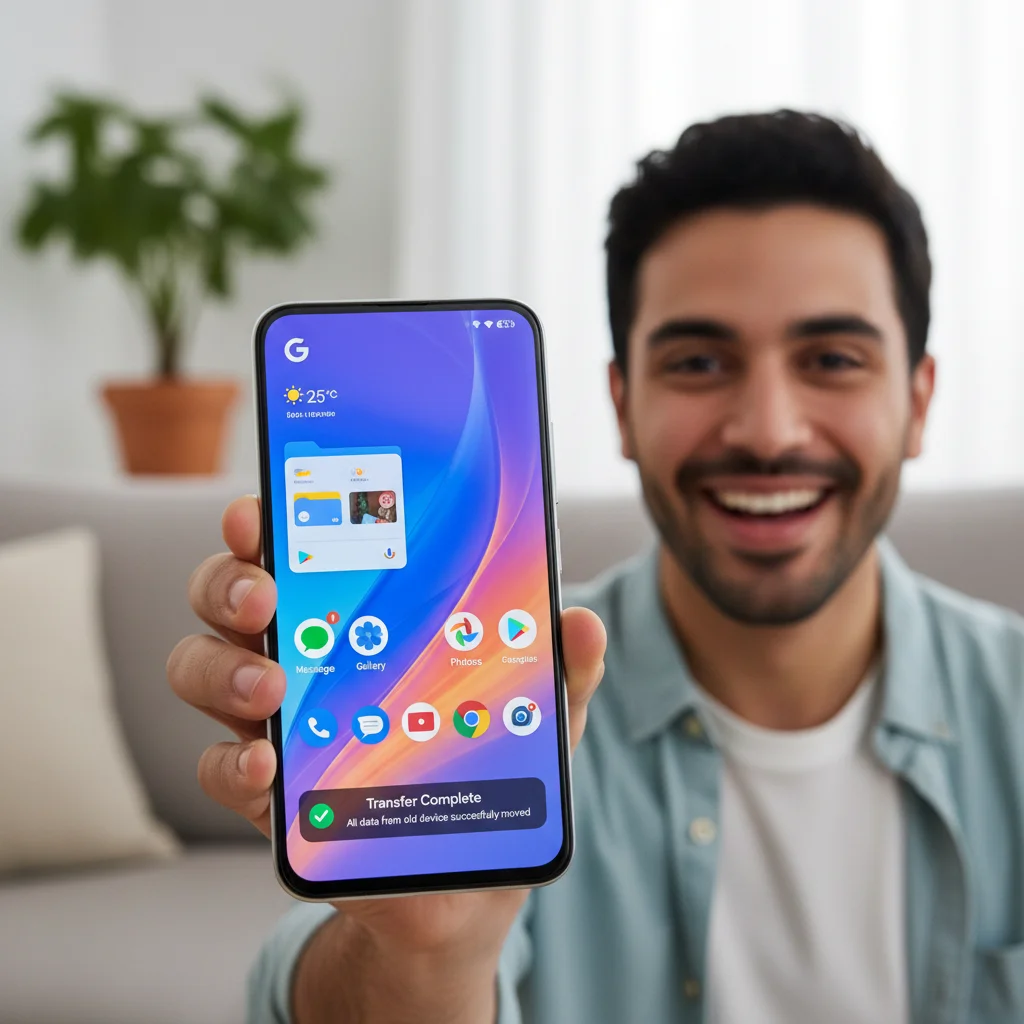
Once the primary data transfer is complete, it’s important to perform a few final checks to ensure everything is in order. This step helps confirm that all your essential information has successfully made its way to your new device and that your phone is running optimally. Taking a few moments for these checks can prevent future headaches and ensure you’re fully satisfied with your new phone setup. It’s the last stage in making sure you’ve successfully managed to transfer Android data completely.
Start by opening your Gallery or Photos app to confirm pictures and videos are present. Check your Contacts app to see if all your contacts have migrated. Launch a few frequently used apps to ensure they open correctly and that your login information (if applicable) is retained. You might need to manually log into some apps for security reasons, especially banking or social media apps. Finally, customize any remaining settings to your preference and explore your new phone’s features. Consider uninstalling any pre-installed bloatware that you don’t need to free up space and improve performance. This makes your new device truly yours.
Frequently Asked Questions
Q: How long does it typically take to transfer all data? A: For most users, using Google Backup or manufacturer tools, the process can take anywhere from 10 to 30 minutes, depending on the amount of data and internet speed. With a cable, it can be even faster.
Q: Will my WhatsApp chat history transfer automatically? A: WhatsApp chat history requires its own backup to Google Drive within the WhatsApp app settings. Ensure this is enabled on your old phone before transferring, and then restore it when setting up WhatsApp on your new device.
Q: What if I’m switching from an older Android version to a much newer one? A: The methods described, especially Google Backup, are generally compatible across different Android versions. Manufacturer tools might have specific version requirements, but they usually support a wide range of devices.
Q: Do I need a Google account to transfer data? A: While not strictly mandatory for all methods, a Google account significantly simplifies the transfer of contacts, app data, and settings. Manufacturer-specific tools might offer alternatives for certain data types.
Q: Can I transfer data if my old phone is broken or won’t turn on? A: If your old phone is severely damaged, transferring data directly might be impossible. Your best bet is to rely on any cloud backups (like Google Backup or manufacturer cloud services) that were made before the damage occurred.
Switching to a new Android phone should be an exciting experience, not a chore. Gone are the days of tedious manual transfers and the fear of losing precious memories or important information. By following the simple steps outlined in this guide, you can confidently transfer Android data to your new device with remarkable speed and ease. Leveraging Google’s robust backup system and taking advantage of manufacturer-specific tools ensures that your contacts, photos, apps, and settings all make the journey intact.
Remember, a little preparation goes a long way. Charging your old phone, connecting to Wi-Fi, and initiating a final backup are small actions that yield significant benefits. The entire process is designed to be user-friendly, allowing you to enjoy your new smartphone fully in under 20 minutes. So, go ahead, embrace your new device, and enjoy a seamless transition into your upgraded mobile experience!