Unlock Android Productivity: 4 Customizations That Boost Efficiency
This article explores four key Android productivity customizations designed to enhance your daily workflow and boost efficiency. Learn practical tips to optimize your device for better focus, faster task completion, and an overall more productive mobile experience.
By: Michael Sete on agosto 14, 2026
Are you looking to get more out of your Android device? Many users tap into only a fraction of their phone’s potential. Unlocking hidden features and applying smart Android productivity customizations can dramatically change how you interact with your device, leading to a noticeable boost in your daily efficiency. We’re talking about simple tweaks that can help you reclaim time and focus.
Your Android phone is a powerful tool, not just for communication and entertainment, but also for getting things done. By tailoring its settings and layout to your specific needs, you can transform it into a personal productivity powerhouse. Let’s dive into four key areas where you can make impactful changes to supercharge your Android experience.
Mastering Notification Management for Focused Work
Notifications can be a double-edged sword. While they keep you informed, a constant barrage of pings and alerts can severely disrupt your focus and break your concentration. Taking control of your notification settings is one of the most effective Android productivity customizations you can implement. It allows you to decide which apps truly deserve your immediate attention and which can wait.
By spending a few minutes fine-tuning these settings, you can significantly reduce distractions. This isn’t about turning off all notifications; it’s about intelligent filtering. Prioritize alerts from essential work tools or urgent communications, and silence the rest. This simple change can create a calmer digital environment, making it easier to concentrate on important tasks without constant interruptions from non-critical apps or social media.
Prioritizing Your Digital Alerts
Categorize Notifications: Many Android versions allow you to categorize notifications within apps. Use this to silence promotional alerts while keeping important messages.
Utilize Do Not Disturb (DND): Schedule DND to activate during your peak working hours. You can even allow calls from starred contacts to ensure you don’t miss emergencies.
Review App Permissions: Regularly check which apps have permission to send notifications and revoke access for those that are overly chatty or unnecessary.
Silence Persistent Notifications: Some apps display ongoing notifications. You can often long-press these to silence or minimize them without fully disabling the app’s alerts.
Optimizing Your Home Screen for Quick Access
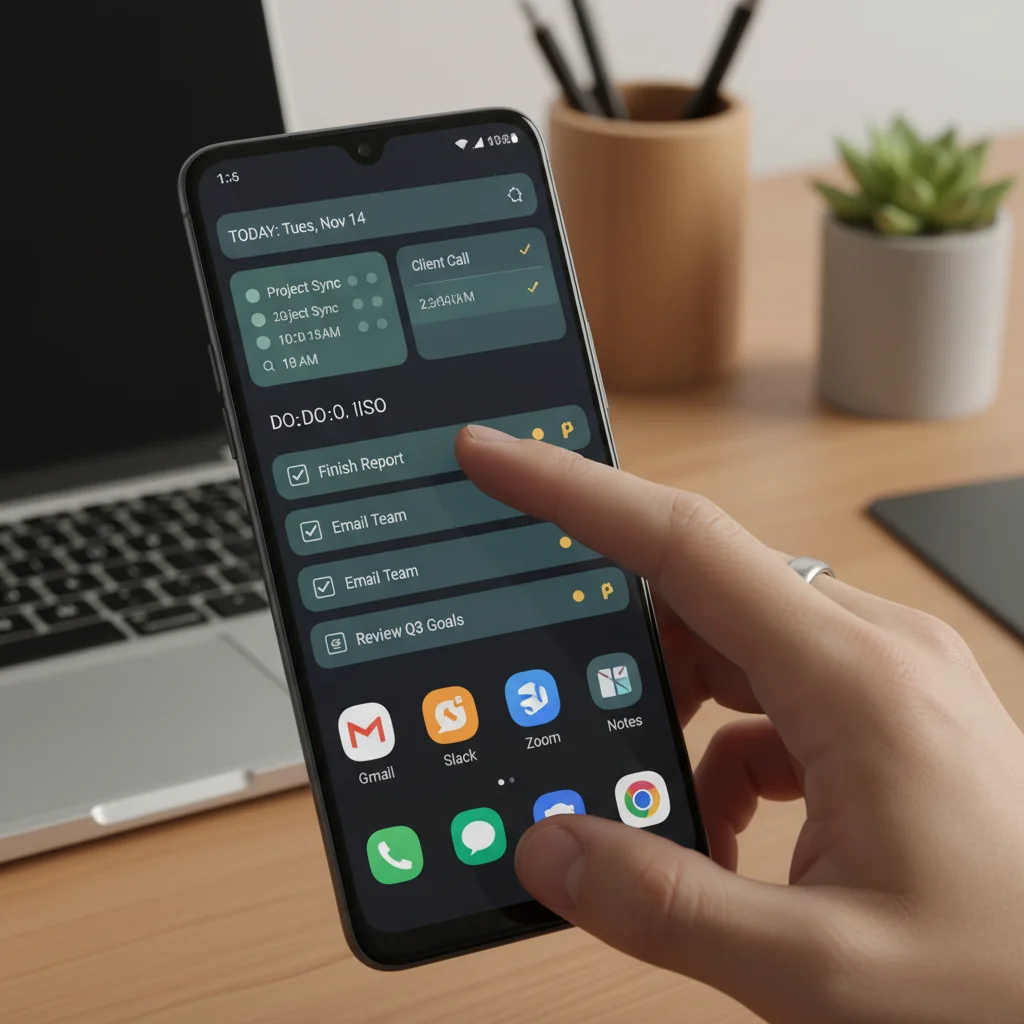
Your home screen is the gateway to your Android experience. If it’s cluttered with unused apps or disorganized icons, you’re wasting precious seconds searching for what you need. A well-organized home screen is a cornerstone of effective Android productivity customizations. Think of it as your digital workspace; you want essential tools within arm’s reach and distractions minimized.
By strategically placing your most-used productivity apps and widgets, you can significantly cut down on navigation time. This means fewer swipes, less searching, and more doing. A clean, functional home screen promotes efficiency and reduces cognitive load, allowing you to launch into tasks faster. It’s about creating an environment that supports your workflow, not hinders it.
Consider grouping similar apps into folders and utilizing widgets that provide glanceable information without needing to open an app. For example, a calendar widget can show your next appointment, or a to-do list widget can display your immediate tasks. This visual efficiency saves time and keeps you informed at a glance. Experiment with different layouts to find what works best for your daily routine and specific productivity needs.
Leveraging Split-Screen and Pop-Up View for Multitasking
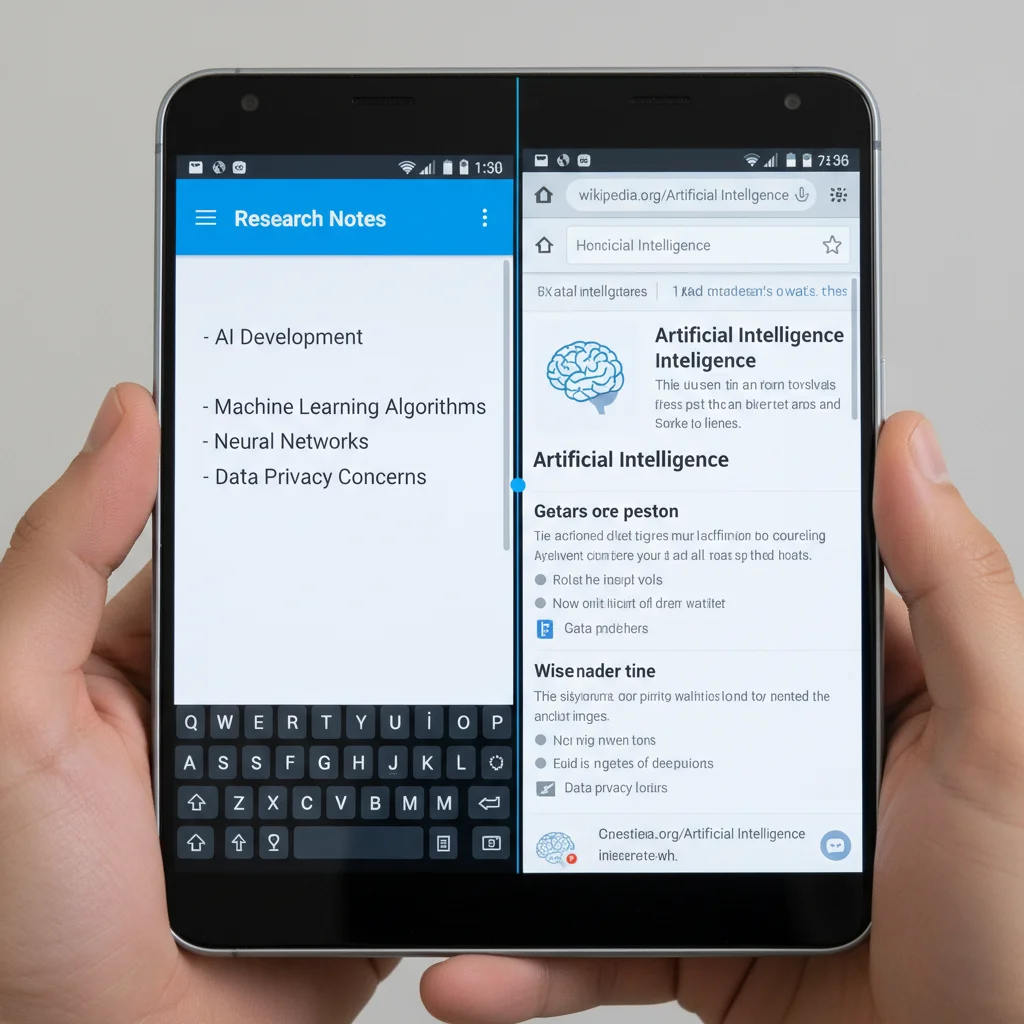
Modern Android devices offer powerful multitasking capabilities that many users overlook. Features like split-screen and pop-up view are invaluable Android productivity customizations that allow you to work with multiple applications simultaneously. Imagine researching a topic in your browser while taking notes in a separate app, all on the same screen. This eliminates the constant switching between apps, which can be a significant time sink and a source of distraction.
Split-screen mode divides your display into two, letting you run two apps side-by-side. Pop-up view, on the other hand, allows an app to float as a resizable window over another application. These modes are particularly useful for tasks that require referencing information from one source while working in another. For instance, you could have your email open in one window and a document editor in the other, making it easy to copy and paste information or refer to details without losing context.
Learning to fluidly switch between these multitasking modes can dramatically improve your workflow, especially on larger phone screens or tablets. It transforms your mobile device into a more capable workstation, allowing you to handle more complex tasks on the go without needing to reach for a computer. This level of simultaneous access to information and tools is a game-changer for mobile productivity.
Automating Routine Tasks with Smart Routines
Many daily interactions with your phone are repetitive, consuming small chunks of time that add up over a day. Android’s built-in automation features, often found under names like ‘Routines,’ ‘Bixby Routines,’ or ‘Digital Wellbeing,’ are fantastic Android productivity customizations that can handle these mundane tasks for you. By setting up smart routines, you can have your phone adapt to your environment and schedule without any manual input.
For example, you can create a routine that automatically silences your phone when you arrive at work, turns on Wi-Fi when you get home, or launches your favorite podcast app when you plug in headphones. These small automations free up your mental energy and ensure your phone is always in the optimal state for your current activity. It’s about letting your device work smarter for you, anticipating your needs and executing actions behind the scenes.
Exploring these automation options can reveal a surprising number of ways to streamline your daily digital life. The initial setup might take a few minutes, but the time saved and the reduction in mental effort over weeks and months will be substantial. This proactive approach to device management ensures that your phone is always supporting your productivity goals, rather than demanding your constant attention for simple adjustments.
Exploring Custom Launchers for Deeper Control
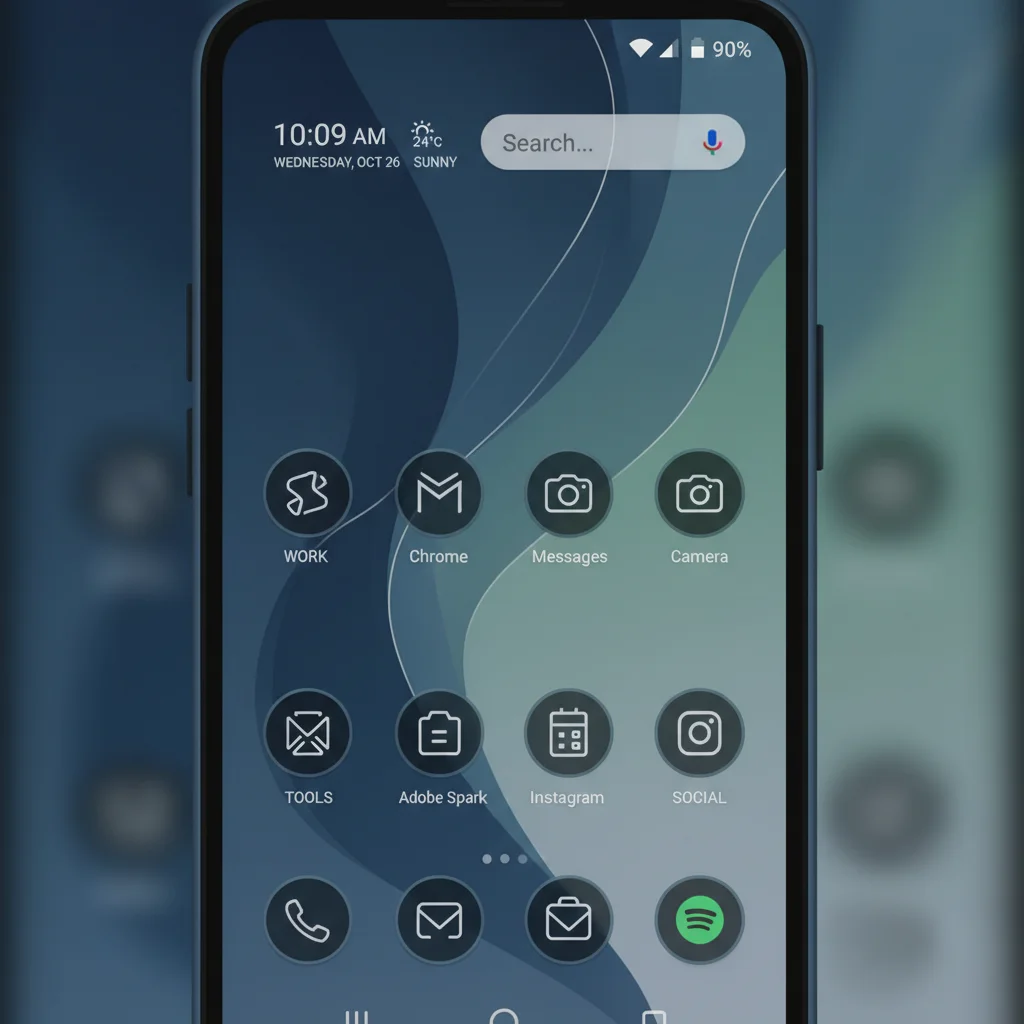
While native Android interfaces offer good functionality, a custom launcher can elevate your Android productivity customizations to a whole new level. A launcher is essentially the app that manages your home screen, app drawer, and gestures. By replacing the default launcher, you gain access to an unparalleled degree of personalization and control over your device’s interface. This can lead to a more efficient and tailored user experience.
Custom launchers often provide advanced features like highly customizable icon packs, gesture controls for quick actions, deeper organizational tools for your app drawer, and even performance enhancements. For instance, you could set a swipe gesture to instantly open your calendar, or categorize your apps more effectively than the default options allow. This level of granular control means you can craft an environment that perfectly matches your workflow and visual preferences.
The beauty of custom launchers lies in their flexibility. If you find the default Android interface too restrictive or not optimized for your specific productivity needs, a custom launcher offers a solution. It allows you to streamline navigation, reduce clutter, and put essential functions exactly where you need them, making every interaction with your phone more purposeful and efficient. Experimenting with different launchers can unlock a truly personalized and productive mobile experience.
Frequently Asked Questions
Q: Will these customizations slow down my Android phone? A: Most of these customizations, especially notification management and home screen organization, are designed to improve efficiency without significantly impacting performance. Custom launchers can sometimes use more resources, but many are optimized for speed.
Q: Are custom launchers safe to use? A: Yes, as long as you download them from reputable sources like the Google Play Store and check their reviews. Stick to well-known launchers with large user bases for the best experience and security.
Q: How do I revert my phone to its original settings if I don’t like a customization? A: For most settings, you can simply go back into the respective settings menu (e.g., Notifications, Display, Gestures) and change them back. If you installed a custom launcher, you can uninstall it like any other app, and your default launcher will automatically restore.
Q: Can I use these tips on any Android phone? A: Most Android phones running recent versions of the operating system will support these features. However, the exact names and locations of settings might vary slightly depending on your phone’s manufacturer and Android version.
Q: What’s the biggest benefit of these productivity customizations? A: The most significant benefit is increased focus and reduced digital friction. By tailoring your device to your needs, you spend less time managing your phone and more time on meaningful tasks, leading to a noticeable boost in overall productivity.
Embracing these Android productivity customizations is more than just tweaking settings; it’s about transforming your smartphone into a more effective tool for your daily life. From taming unruly notifications to crafting an optimized home screen, leveraging multitasking, and automating routine actions, each step contributes to a more streamlined and focused mobile experience. The small adjustments you make can collectively lead to significant gains in your personal and professional efficiency. By investing a little time upfront to personalize your device, you’ll find yourself spending less time reacting to your phone and more time proactively accomplishing your goals. Don’t let your Android phone be a source of distraction; instead, mold it into a powerful ally that helps you stay on track and boost your productivity. Take control of your digital environment today and unlock the full potential of your Android device.